
Set up downloads
- Open Settings → Downloads and turn on Enable Downloads if needed.
- Choose a Download Folder you can write to and that has enough free space.
- On desktop, allow time for any required managed tools to download. OpenTubeX uses yt-dlp and FFmpeg for download tasks; tool options depend on your platform.
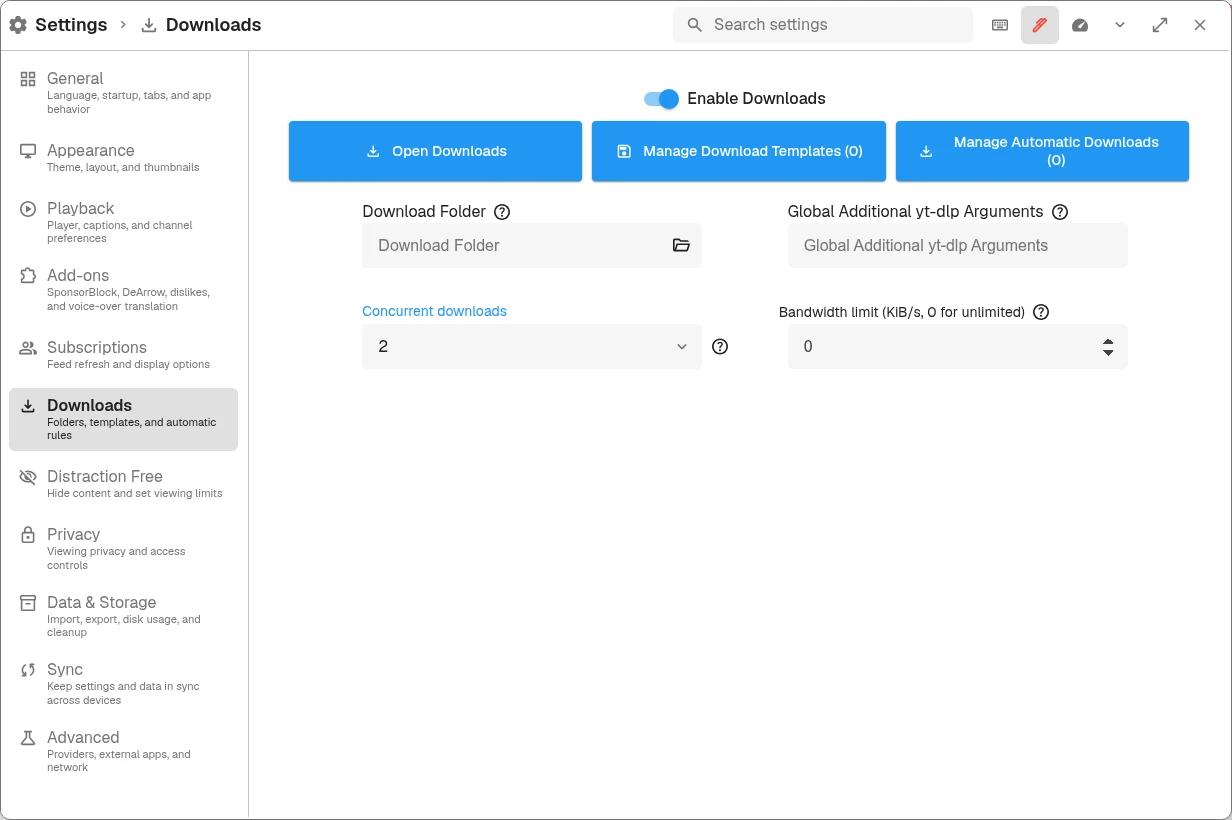
Select the folder icon in Download Folder to choose where files are saved.
Android uses its own storage picker and download implementation. Grant access to your chosen folder when prompted; desktop executable paths and the choice of system-installed tools do not apply there.
Download a video or audio
- Open a video or its menu and select Download Video.
- In the download dialog, choose the offered format and quality, or an audio-only option when you want sound without video.
- Confirm the download.
- Open Downloads from the top bar or profile menu to see progress and queued items.
Downloads need a working connection until they finish. Higher-quality video usually uses more storage. Subtitles can be downloaded when offered for the selected video.
Play a completed download
- Open Downloads and find a completed item.
- Choose Play download to watch the saved media.
- On desktop, use Show in Folder to locate the file in your file manager.
Keep the file in its saved location if you want OpenTubeX to find it again. Clearing an entry from the list and permanently deleting its file are different actions; read the confirmation before removing media.
Download a playlist
Open a playlist’s menu and choose Download Playlist when available. Review the download options before starting: a large playlist can use significant space. The Downloads panel shows the queued work.
Manage a failed download
- Open Downloads and read the item’s error.
- Check your connection, free space, and access to the download folder.
- On desktop, check managed tool updates under Settings → Advanced → External Software if the error mentions yt-dlp or FFmpeg.
- Use Retry download after fixing the cause.
If the video itself will not play, start with playback troubleshooting. Include the download error and platform when reporting a bug.