
Sync shares selected library data between your OpenTubeX installations. Export your library before connecting devices or changing your setup. Sync can propagate changes and deletions; keep a separate backup.
See the device sync comparison.
Choose a server
The default public OpenTubeX sync server supports all sync features with end-to-end encryption. The app encrypts synced data on your device before uploading it; only your devices hold the key. The server still receives account and connection metadata.
You can also use a self-hosted OpenTubeX server. LibreTube sync servers are supported, but do not support end-to-end encryption or certain sync features.
Read the Privacy policy for this server link when available. The network exposure table explains what a sync operator can observe.
Connect your first device
- Open Settings → Sync and turn on Enable Sync.
- Enter or select the Server URL and wait for the server check.
- Enter your Username and account Password. For encrypted sync, also enter a separate Privacy passphrase. Use the same privacy passphrase when signing in to an existing encrypted account.
- Choose Register to create an account if the server allows registration, or Log in for an existing account.
- Check the connection and privacy status, then review the categories described below. Use Sync now and wait for synchronization to finish before pairing another device.
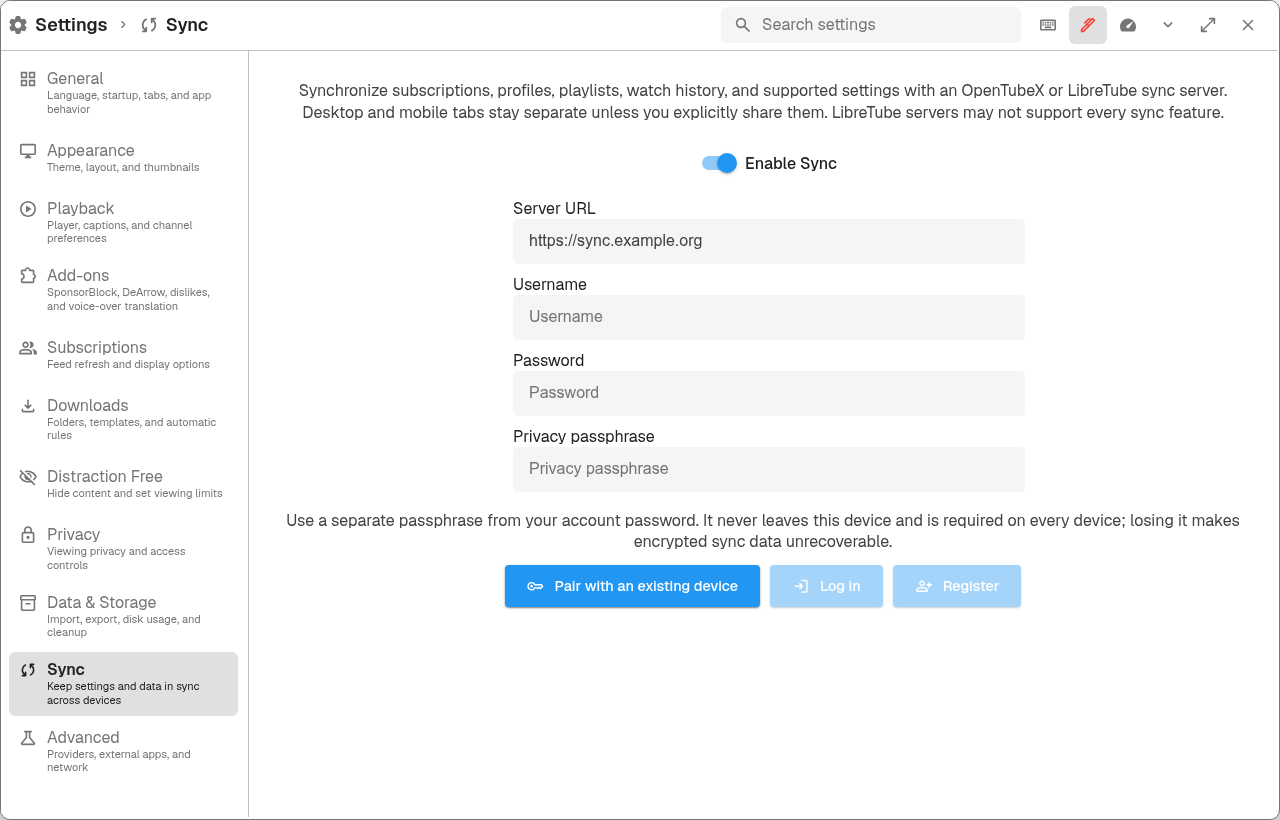
Connect in Settings → Sync. The server address shown is an example, not a public sync service.
Keep the privacy passphrase somewhere private that you can recover independently of the app. Your account password authenticates you to the server; the privacy passphrase unlocks encrypted data. Changing the account password does not recover a lost privacy passphrase. If you lose the passphrase and no connected device retains the privacy key, the encrypted data cannot be recovered from the server.
Choose what to sync
In Settings → Sync, review Subscriptions, Playlists, History, Profiles, Open tabs and session, and Settings. Settings sync does not transfer every device-specific preference or credential.
Each device keeps its own open tab set by default, including devices of the same type. Enabling Use one shared tab set across devices makes the current device’s tabs the shared set. Other devices replace their open tabs with that set when they sync; tabs from different devices are not combined.
Watch stats sync is enabled by default; turn it off to keep statistics on the device. It is separate from the History toggle.
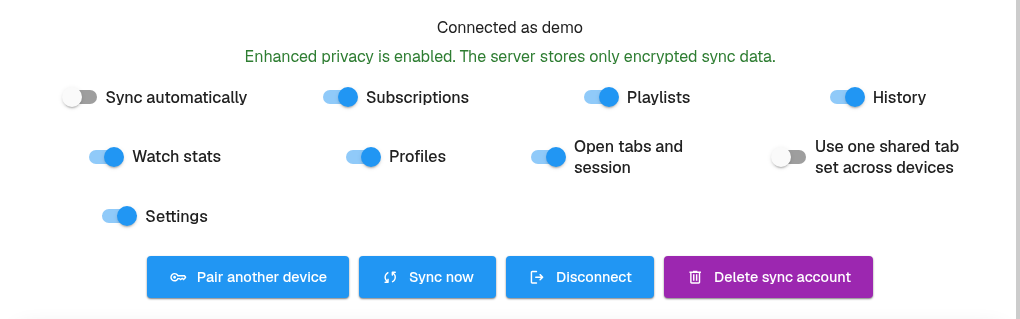
Choose categories separately. This example account keeps automatic sync and shared tabs off.
Use Sync now for a manual sync, or enable Sync automatically. If the app stops synchronization to prevent data loss, review the proposed deletions before allowing it to continue.
Pair another device
Secure pairing transfers the encryption key from a device already connected to your sync account.
- On the new device, open Settings → Sync, enable sync, and select the same Server URL as the connected device.
- Choose Pair with an existing device, enter a recognizable Device name, and choose Create pairing code.
- On the already connected device, choose Pair another device and scan the new device’s QR code. Alternatively, choose Use text code instead on the new device and Enter code manually on the connected device, then paste the code and choose Check code.
- On the connected device, check the request and choose Approve pairing. Compare the verification codes on both devices. On the new device, choose Codes match only if they match.
- Wait for pairing and sync to finish, then review the new device’s sync categories and library.
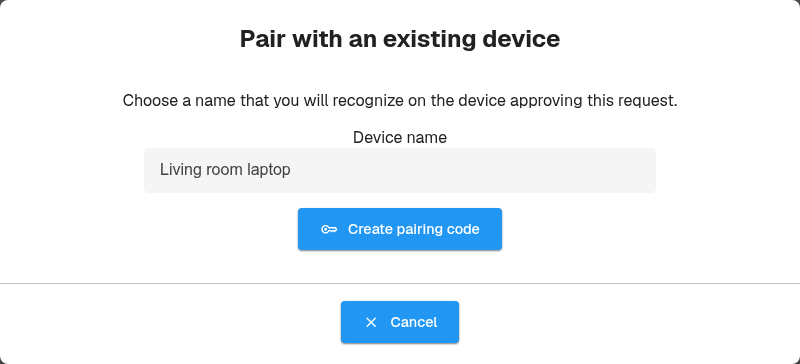
Start on the new device: give it a recognizable name, then create its pairing code.
Pairing transfers account access and the privacy key without typing your account password or privacy passphrase on the new device. Show the pairing code only to your trusted device. It expires after two minutes; create a new code if it expires, and clear text codes from clipboard history afterward.
You can also sign in on the second device with the same server, username, account password, and privacy passphrase. If pairing reports that it cannot verify the key, sync the existing device first and retry.
Disconnect or remove the account
Use Disconnect to disconnect this installation. Delete sync account permanently removes the server account and its stored data, while leaving the current device’s local OpenTubeX data in place. Read the confirmation and keep your exports before deleting the account.
Next: Playback and settings →