
Use data exports to transfer your library between devices. Use the storage view when you need to locate the desktop profile or understand disk usage.
Open the desktop profile directory
- Open Settings → Data & Storage.
- Select Storage.
- Choose Open profile directory to open the current profile folder in your file manager.
This is more reliable than assuming a fixed path: portable apps, sandboxed packages, and development builds can use different locations. Android uses its own application storage and does not offer the same desktop file-manager workflow.
Understand the files
| File | Contents |
|---|---|
profiles.db | Profiles and subscriptions |
settings.db | Application preferences |
playlists.db | Local playlists and saved videos |
history.db | Watch history and saved progress |
search-history.db | Saved searches |
subscription-cache.db | Cached subscription-feed entries |
These are application data files, not downloaded video files. Downloads are saved in your configured Download Folder. The profile folder may contain additional caches, session data, and files used by other features.
Back up or move to another device
For normal transfers, use the export and import actions. They let you choose what to transfer without copying device-specific settings indiscriminately.
If you need a full desktop profile backup, close OpenTubeX before copying its profile directory to a private backup location. Copy downloaded media separately. Do not edit or replace live database files while the app is running.
Free storage
- Open Settings → Data & Storage → Storage and review the categories and their descriptions.
- Prefer clearing a replaceable cache when you only want to reclaim cached data.
- Read the confirmation before clearing history or other library records.
- To remove downloaded media, use the Downloads panel and review whether the action clears its list entry or permanently deletes the file.
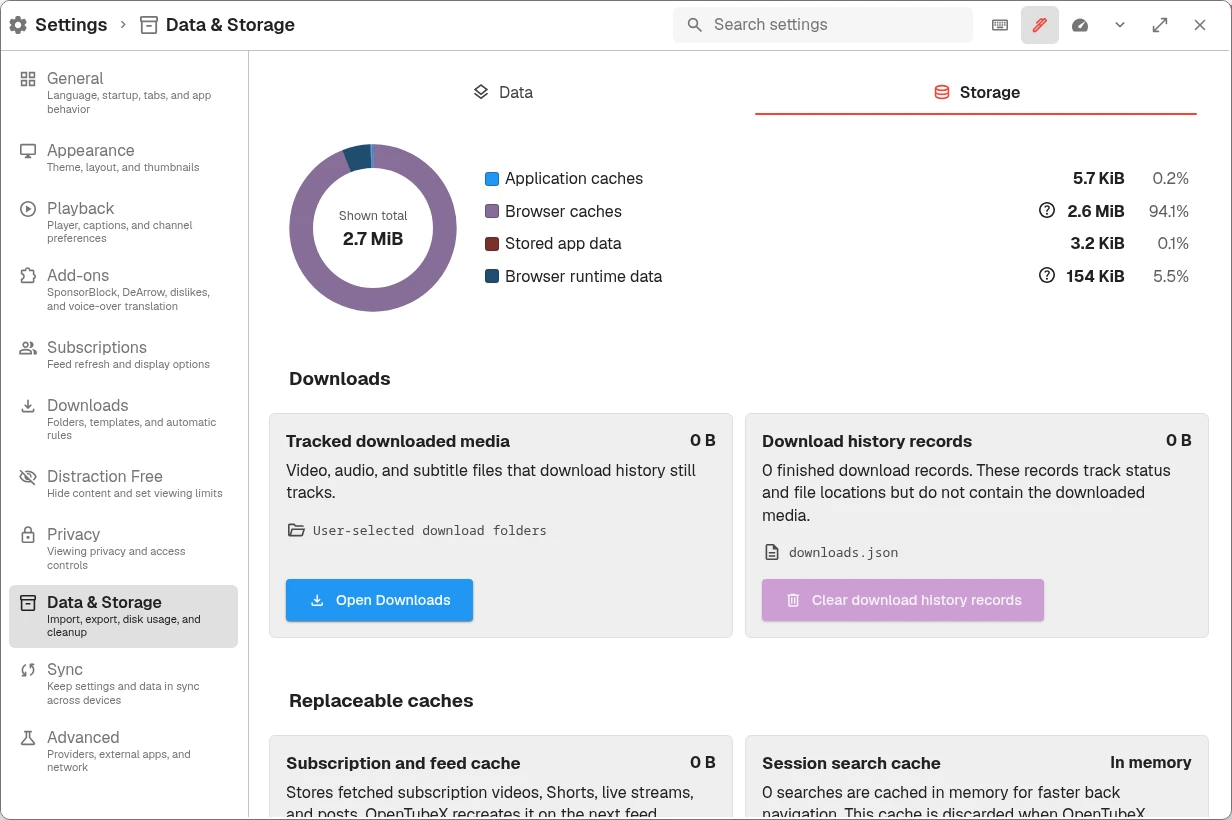
The Storage tab separates downloaded media, records, and replaceable caches so you can choose what to clear.
Cleared caches may need to be fetched again, which uses your connection. A cache is not a backup of your subscriptions, playlists, or history. See Privacy and watch history for retention and deletion controls.