
Find the import and export controls
- Open your profile menu and select All settings.
- Select Data & Storage.
- Open the Data tab. Each data type has its own import and export action.
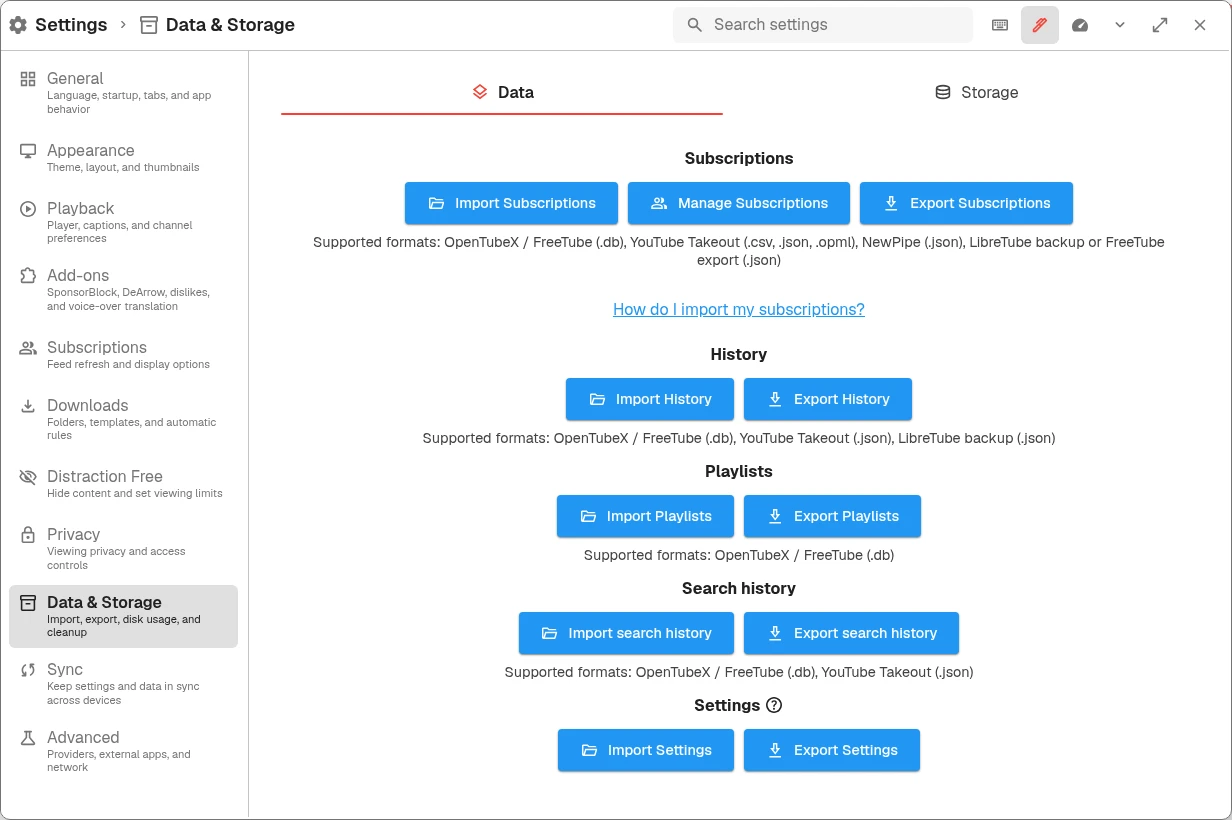
Desktop Data & Storage settings. Choose the action for the type of data you are moving.
Import subscriptions
- Export subscriptions from your previous app. For YouTube, request a YouTube data export through Google Takeout, including subscriptions.
- Extract any downloaded archive first. You need the subscriptions file inside it, not the ZIP archive.
- In OpenTubeX, select Import Subscriptions in the Data tab and choose the file.
- Wait for the import result. Open Subscriptions, check the active profile, and refresh the feed.
Supported subscription formats include OpenTubeX / FreeTube .db, YouTube Takeout .csv, .json, or .opml, NewPipe .json, and LibreTube backup or FreeTube export .json. A JSON file must contain the expected export data; renaming a different file does not convert it.
Get your subscriptions from YouTube
Follow the Google Takeout walkthrough to export subscriptions as CSV and watch/search history as JSON. It covers export selection, the history format, and exactly which extracted file to import.
Move from another app
Export a subscription file from your previous app, then transfer it to the device running OpenTubeX. Use a subscriptions export rather than a full archive when your app offers both. For OpenTubeX or FreeTube, keep the original .db file; for NewPipe, use its subscriptions .json export. Import the file with the steps above.
Import history or playlists
- In the Data tab, choose Import History, Import Playlists, or Import search history.
- Select the matching exported file and wait for the result.
- Open the corresponding library page to check the imported entries.
History accepts OpenTubeX / FreeTube .db, YouTube Takeout .json, and LibreTube backup .json. Search history accepts OpenTubeX / FreeTube .db and YouTube Takeout .json. Playlists accepts OpenTubeX / FreeTube .db exports; the playlist importer does not accept a YouTube Takeout archive.
Back up your library
- Open Settings → Data & Storage → Data.
- Select Export Subscriptions, then Export OpenTubeX to keep OpenTubeX profiles and subscriptions.
- Export History, Playlists, search history, and Settings separately if you want to keep those too.
- Save the files in a backup location you can find on your other device.
- To restore, use the matching import actions on that device.
Exports contain your personal viewing data. Store them privately. Settings exports omit device-specific and experimental options, such as proxy configuration, external-player paths, and screenshot folders. Downloaded video and audio files are separate from these exports; copy those files separately if you need them.
If an import fails
Check the file type against the supported formats above, extract archives, and make sure you selected the correct data action. Keep the original export unchanged. If an import reports skipped items, inspect the result before assuming everything transferred. See Troubleshooting for the next steps.