
A content provider retrieves video and channel information. It is separate from your local subscription library and from the player that plays the media.
Local API and Invidious
Local API retrieves information directly from YouTube using the extractor included with OpenTubeX. YouTube receives those requests. If a YouTube change breaks extraction, an app update may be needed.
Invidious API retrieves information through the Invidious server you select. That server contacts YouTube on your behalf and can observe your requests. Its availability depends on the operator and whether YouTube is blocking it.
Neither option requires you to transfer your local subscriptions to a YouTube account. Choosing Invidious alone does not guarantee that every connection avoids YouTube: video proxying, fallback, and other enabled features also matter.
Change the provider
- Open Settings → Advanced.
- Find Preferred API Backend under the provider settings.
- Choose Local API or Invidious API.
- If choosing Invidious, review Current Invidious Instance and select the server you intend to use.
- Retry the same search or video to check the change.
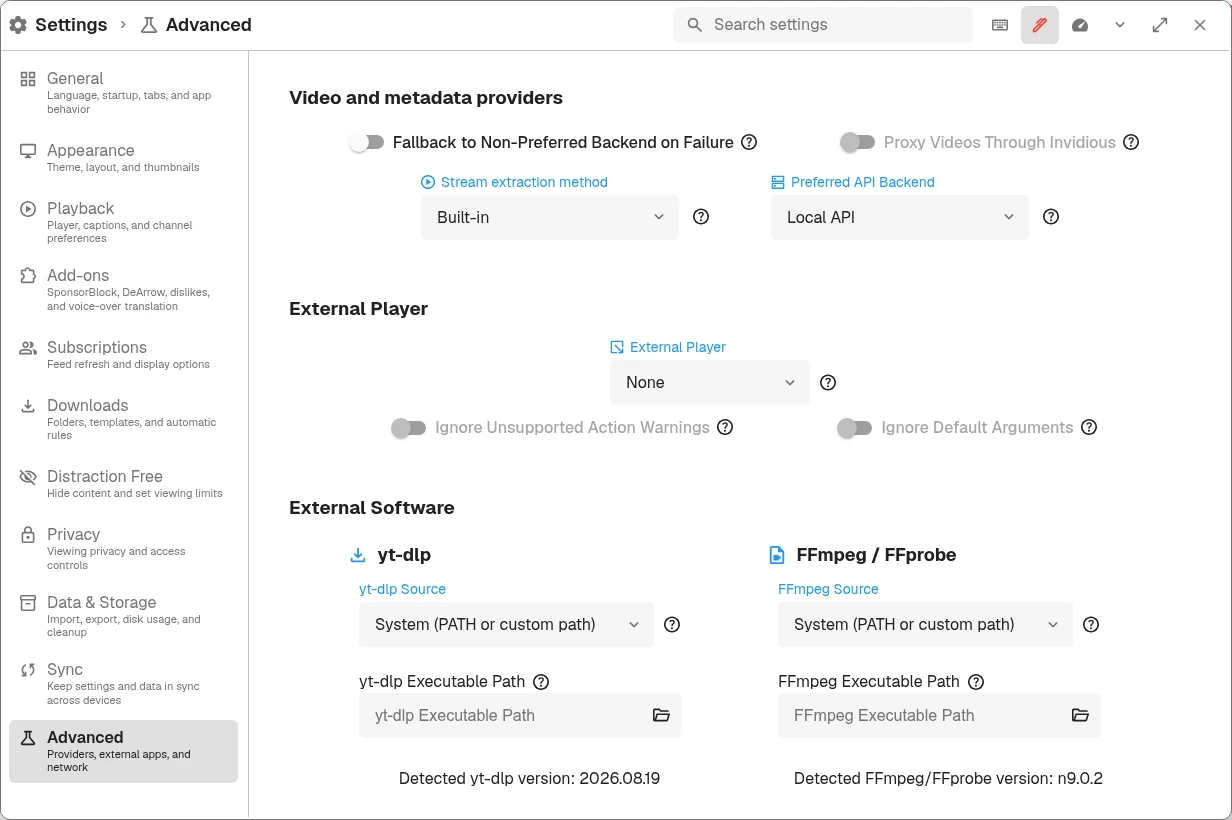
Preferred API Backend and fallback are in the Video and metadata providers section of Advanced settings.
Use settings search if the controls are not immediately visible. Choose an instance you trust rather than pasting an unknown server address solely because it appears in an error workaround.
Understand fallback
Fallback allows the app to try another backend when the preferred backend fails. This can improve availability, but it can also send requests to a service you were trying to avoid.
Search settings for fallback, review the setting, and disable it if you need to control which provider receives requests. Record your original settings before troubleshooting so you can restore them afterward.
Proxy video through Invidious
Search settings for Proxy Videos Through Invidious to review video proxying. When supported by the selected playback path, this sends video requests through the instance rather than directly to YouTube. Proxying can affect speed and availability.
Do not assume this switch controls external players or every playback engine. OpenTubeX’s privacy policy describes exposure for local extraction, Invidious, and yt-dlp separately.
When a provider stops working
Try another public video, check for an app update, and check whether the selected instance is reachable. If you change providers as a test, note whether search, channel pages, or playback improved; that distinction helps a bug report.