
Profiles group your subscribed channels into separate feeds, such as music, learning, or news. They are channel groups within the app, not separate Google accounts.
Create a profile
- Open Settings → Data & Storage → Data.
- Select Manage Subscriptions to open the profile manager.
- Choose Create New Profile.
- Enter a name, choose its appearance, then select Create Profile.
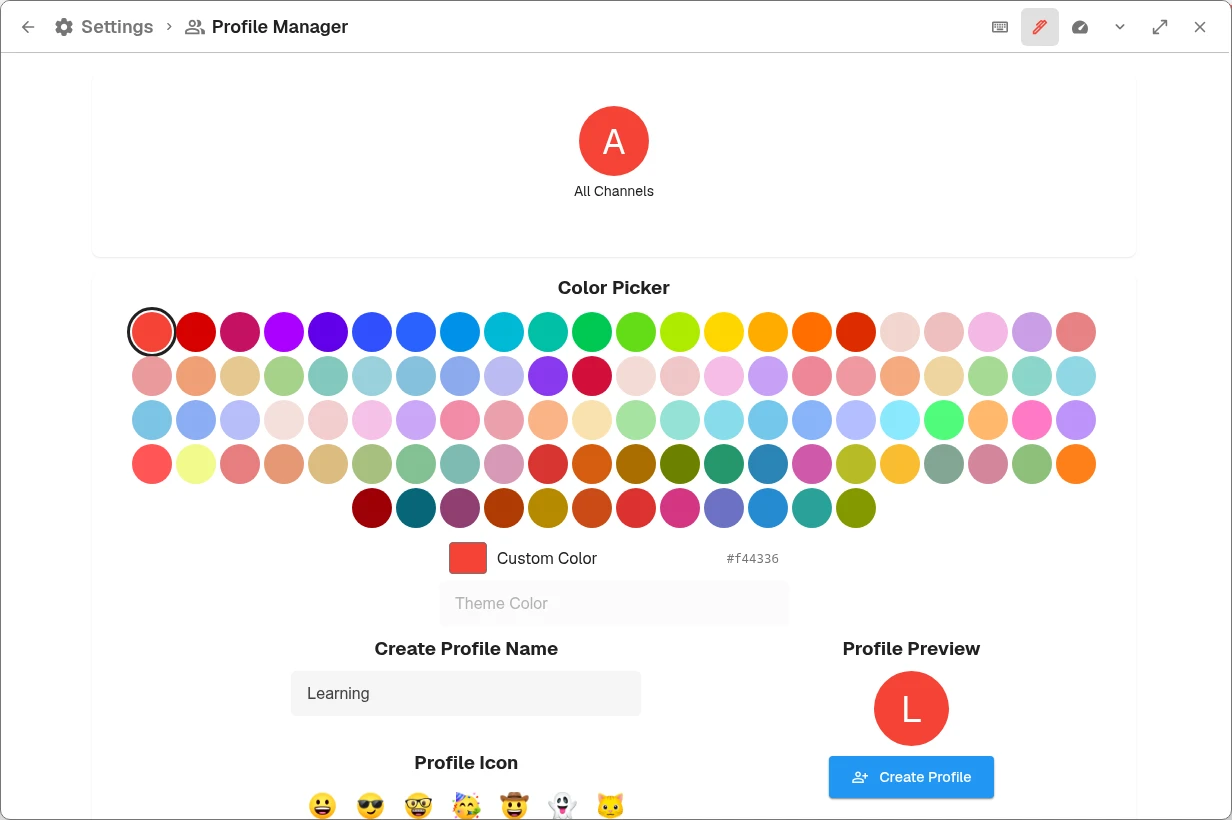
Choose a color and name, check the profile preview, then select Create Profile.
The default All Channels profile collects your subscriptions. Use an additional profile when you want to focus on a subset.
Switch the feed you see
- Open the profile menu from the profile icon.
- Choose a profile in the profile selector.
- Open Subscriptions to view that profile’s channels.
An empty profile has no channels to show. Switching profiles is not a way to create separate watch-history or playlist libraries.
Add channels
To add a new channel, switch to your desired profile, open the channel, and select Subscribe. The channel is also included in All Channels.
To organize channels you already follow:
- Open Manage Subscriptions and choose the profile you want to edit.
- Select channels from the available channel list.
- Choose Add Selected To Profile.
- Return to your subscription feed and check the active profile.
Remove channels carefully
Switch to a profile and use Unsubscribe on a channel to remove it from that group. The profile manager also offers bulk selection for managing channels.
Removing a channel from All Channels removes it from the other profiles too. If you only want it out of one group, edit that group instead. Export your subscriptions before reorganizing a large library.
Back up profiles
Use Settings → Data & Storage → Data → Export Subscriptions → Export OpenTubeX. That format preserves profile information for importing on another OpenTubeX installation. See Back up your library.