
Use the player
- Open a video. Move the pointer over the player, or tap it on a phone, to reveal controls.
- Use play/pause, the seek bar, and volume to control playback.
- Open the player’s settings menu to change quality or playback speed. Available qualities depend on the video and playback engine.
- Use the captions control to select a subtitle track when one is available.
- Use fullscreen for a larger view. On desktop, Picture-in-Picture keeps a floating player visible while you work elsewhere.
Some controls move into the player’s overflow menu when space is limited. Live streams may not support seeking through the full video.
Set your playback defaults
- Open Settings → Playback.
- Adjust default quality, playback rate, or autoplay options to suit your connection and viewing preferences.
- Set your preferred caption language and appearance if you use subtitles.
- Open another video to check your defaults.
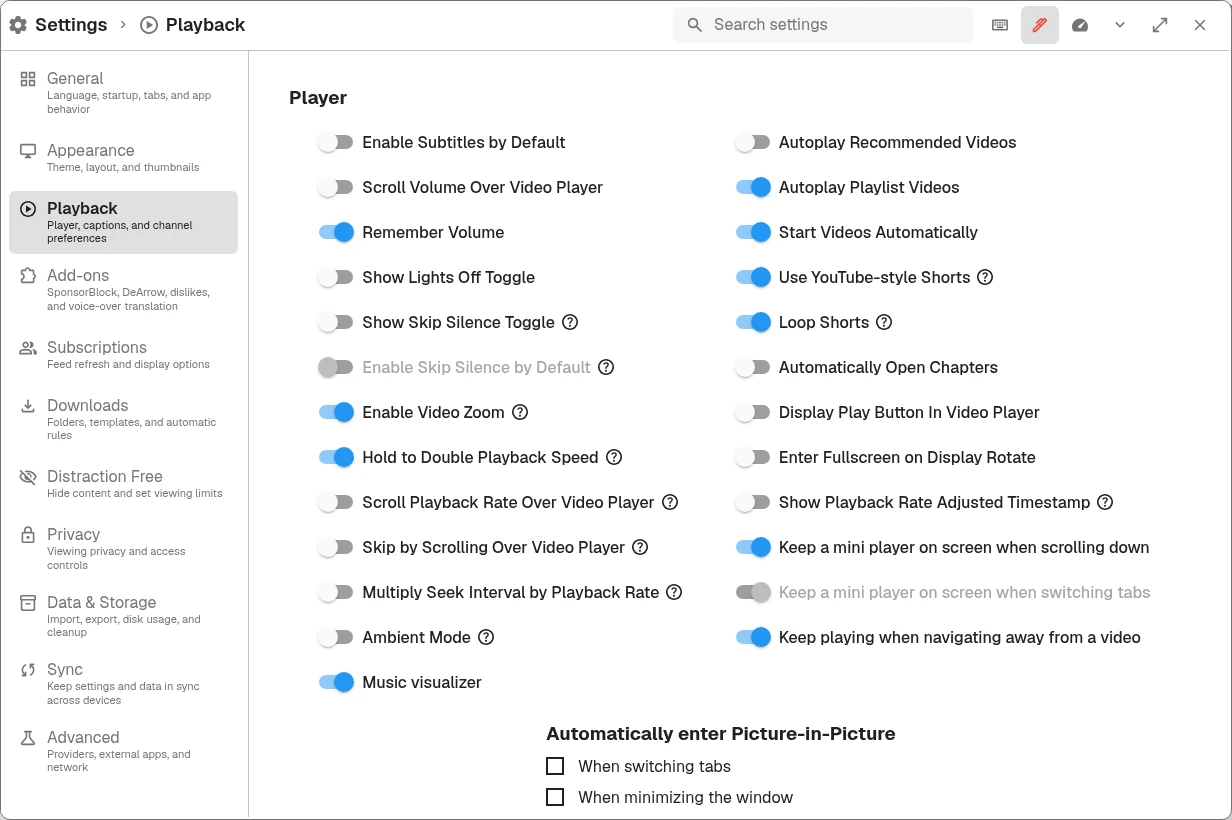
Desktop Playback settings. Player controls change the current video; settings let you choose defaults.
Start Videos Automatically, Autoplay Recommended Videos, and Autoplay Playlist Videos control different behaviors. Turn off the ones you do not want. Per-channel settings can override global preferences, so check those if one channel behaves differently.
Find and customize keyboard shortcuts
On desktop, open Keyboard Shortcuts from the profile menu to see the current bindings. Select a shortcut and press a new combination to change it. This is also the place to check the bindings for play/pause, seeking, captions, fullscreen, and Picture-in-Picture.
Shortcuts can be customized, so the displayed bindings are the source of truth. When typing in search or another text field, move focus back to the player before using playback keys.
Choose appearance and content settings
- Appearance: choose a theme and adjust layout and thumbnails.
- Subscriptions: adjust feed refresh and display options.
- Add-ons: configure SponsorBlock and other optional services. Choose which SponsorBlock categories should be skipped automatically.
- Privacy: review viewing privacy options.
- Data & Storage: import or export your library and inspect storage usage.
- Sync: connect your devices for encrypted synchronization. Keep recovery information private and make a backup before changing your setup.
See the SponsorBlock guide for skip behaviors and Privacy and watch history for recording controls.
Use settings search when you know an option’s name but not its category. The Features page explains additional options such as transcripts and per-channel playback settings.
Android and Linux differences
On Android, tap to show player controls. Background playback can continue when you switch apps; Android’s media notification provides playback controls. If it stops after the screen locks, see background playback troubleshooting.
On Linux Wayland, the automatic Picture-in-Picture trigger for minimizing the window is unavailable. Use When the window loses focus or is switched away instead. Desktop window and external-player options do not all apply to Android.