
Find a video or channel
- Enter a title, channel name, or YouTube link in the search field.
- Submit the search and open a result.
- Open the channel name to browse more uploads from that creator.
OpenTubeX keeps your subscriptions and local playlists in the app. You do not need to sign in to YouTube, and these changes do not update your YouTube account.
Subscribe to a channel
- Open the channel you want to follow.
- Select Subscribe.
- Open Subscriptions in the navigation to see uploads from your channels. On a small screen, some navigation entries are under More.
- Use the feed’s refresh action to fetch new uploads.
Already have subscriptions elsewhere? Import your existing subscriptions instead of adding channels one by one.
Use profiles
Profiles let you group channels, for example into work and leisure viewing.
- Open the profile menu from your profile icon.
- Use the profile selector to choose or manage a profile.
- Check which profile is active when viewing your subscriptions.
If a channel appears to be missing, check All Channels before importing it again. Feed filters can also hide videos, Shorts, or live content.
For step-by-step profile creation and bulk channel management, see Organize channels with profiles.
Create a local playlist
- Open Playlists in the navigation.
- Select Create New Playlist.
- Enter a name and select Create.
- On a video, use Add to Playlist and choose the playlist. On desktop, video cards also expose actions on hover; use the video’s menu when an action is not visible.
- Return to Playlists and open your playlist to watch its videos.
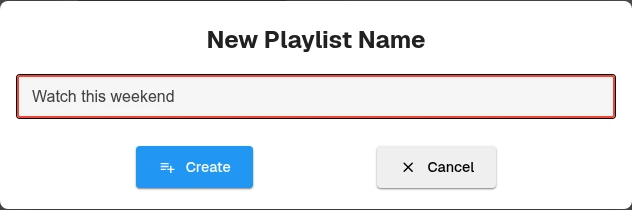
Give the playlist a name, then select Create. This example uses “Watch this weekend”.
Local playlists are stored by OpenTubeX. They are separate from public YouTube playlists, and adding a video does not download it. See Downloads to save media for offline use.
Open settings
- Select your profile icon to open the quick settings menu.
- Choose All settings.
- Select a category or use settings search to find an option by name.
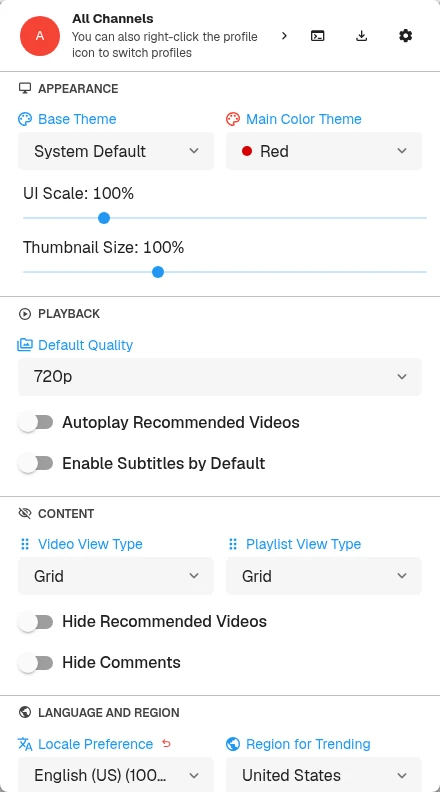
Select the gear at the top right of quick settings to open All settings.
Start with Playback and settings for captions, autoplay, appearance, and SponsorBlock. Back up your library once you have it set up.