
Google Takeout exports your Google account data. OpenTubeX imports the extracted subscription and history files; you do not need to sign in to Google inside OpenTubeX.
Choose your YouTube data
- Open Google Takeout in your browser and sign in to the account you use for YouTube.
- Choose Deselect all, then select YouTube and YouTube Music.
- Open All YouTube data included. Deselect everything in that dialog, then select subscriptions for your channel list and history if you also want watch and search history.
- Confirm with OK.
Selecting only these categories avoids including uploaded videos and other unrelated data. If you use more than one Google account, check which account is selected before exporting.
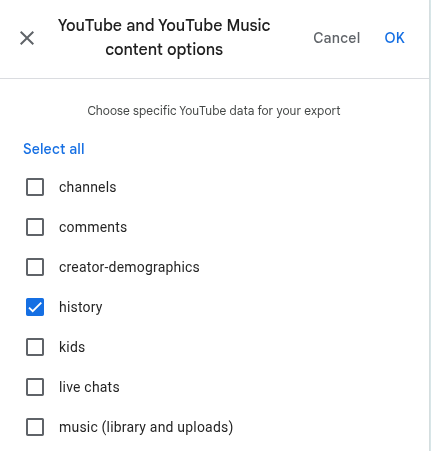
Select history for watch and search history. To transfer subscriptions too, scroll to the subscriptions option and select it as well.
The Google Takeout screenshots below and above come from Positroid’s September 2025 walkthrough. They show the relevant controls, but are not captures of today’s interface. Google may change the layout and labels. The screenshots retain Google’s original light appearance; OpenTubeX screenshots follow your selected website theme.
Choose JSON for history
- In the YouTube and YouTube Music entry, open Multiple formats.
- Change History to JSON and confirm with OK.
- Select Next step.
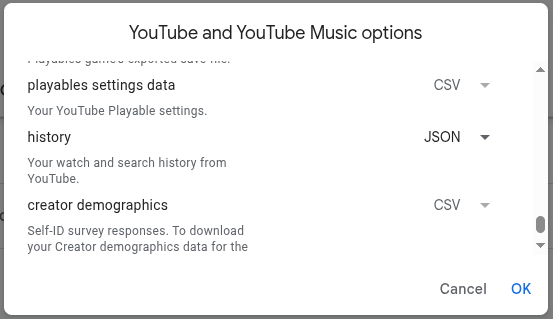
Set history to JSON before requesting the export.
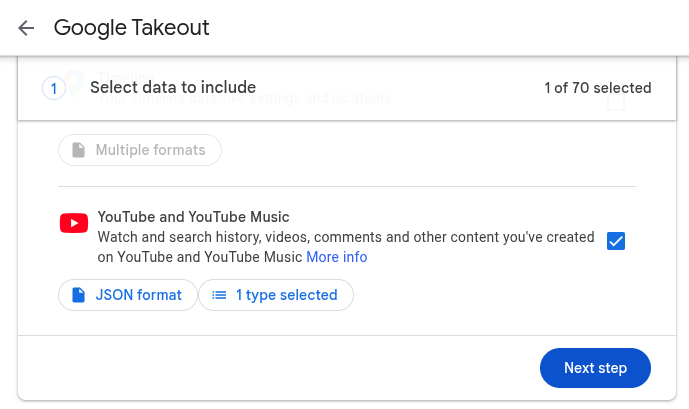
After making your choices, the buttons may read JSON format and a count of selected types rather than Multiple formats and All YouTube data included. This example includes history only.
This step matters for watch and search history. OpenTubeX expects a JSON history export, not Takeout’s HTML version. Subscription exports use CSV. Renaming an HTML file to .json does not convert it.
Create and download the export
- Choose Send download link via email, Export once, and .zip.
- Select Create export.
- Wait for Google to prepare the archive. Use the download link when it is ready; Google may ask you to sign in again.
- Download the ZIP and extract it with your file manager. If Google splits the export into several archives, extract the parts containing your YouTube data.
You do not need to upload the archive to another website. Creating an export does not delete your data from Google. Google’s export help covers delivery options and account-specific problems.
Find the files and import them
Look inside the extracted Takeout/YouTube and YouTube Music/ folder. Folder names may differ with your Google account language.
| Data | File inside that folder | OpenTubeX action |
|---|---|---|
| Subscriptions | subscriptions/subscriptions.csv | Import Subscriptions |
| Watch history | history/watch-history.json | Import History |
| Search history | history/search-history.json | Import search history |
- In OpenTubeX, open your profile menu, choose All settings, then Data & Storage → Data.
- Choose the action from the table and select its extracted file.
- Wait for the import result before starting another import.
- Check Subscriptions or History in the app. Refresh the subscription feed to fetch channel uploads.
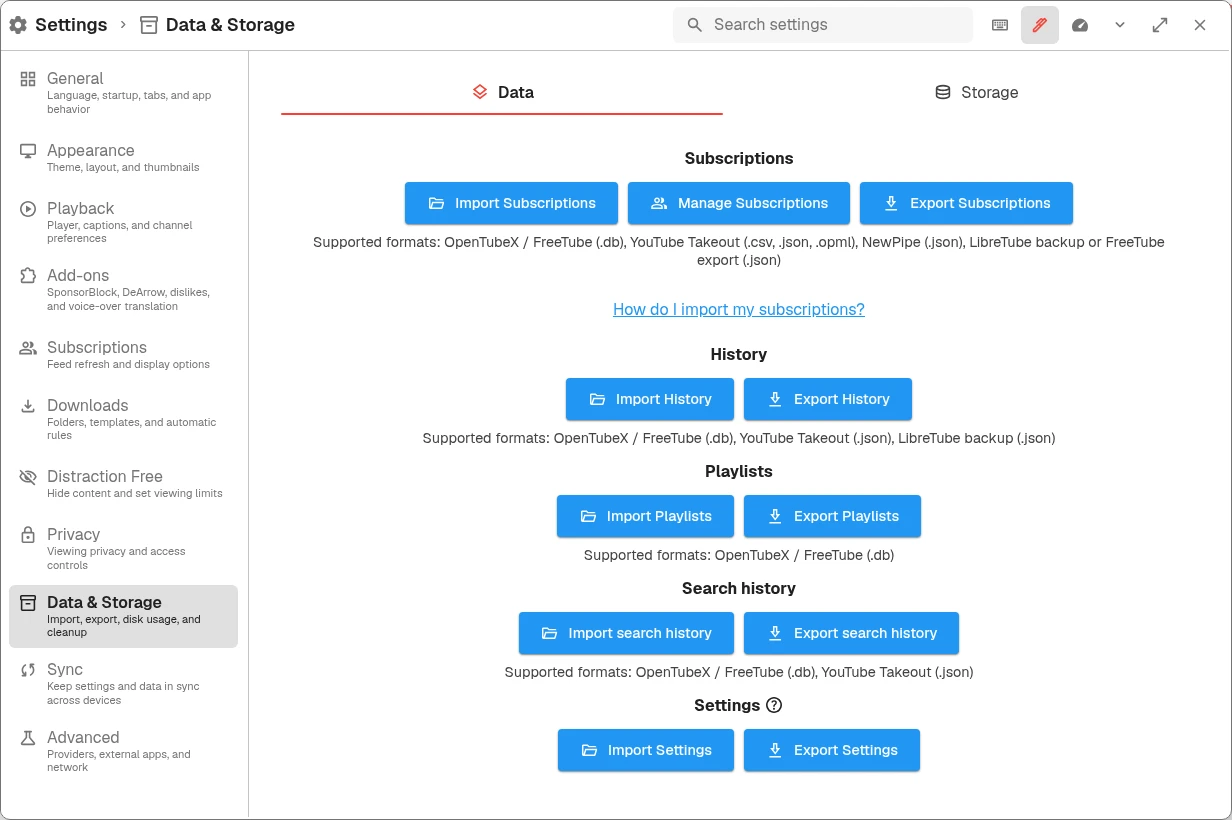
Select the import action for each extracted file. The ZIP itself is not the file to select.
If something is missing
- Only HTML history files: create another export with History set to JSON.
- No subscriptions or history folder: check the account and the selected data categories. The archive’s
archive_browser.htmlis an index, not a history file. - Older history is missing: the export can only contain data Google still retains. Previously deleted activity may not be recoverable.
- A channel is missing after import: check the import result and your active profile. A removed channel or incomplete export may need investigation.
- You want to import playlists: OpenTubeX’s playlist importer accepts OpenTubeX / FreeTube
.dbexports, not Takeout playlist files.
Keep your original archive until you have checked the imported data. See Importing and backing up data for other supported formats.
Sources and image credits
Takeout instructions are adapted from FreeTube’s subscription and history guides, with OpenTubeX-specific import steps. General export behavior is checked against Google Account Help.
The three Google Takeout UI screenshots are reproduced unchanged from positron48’s source images, published with the September 2025 article linked above. Google product visuals belong to Google and are shown for instructional purposes; they are not covered by the FreeTube Docs MIT license. See Google’s educational-use guidance. OpenTubeX is not affiliated with Google.
Next: Playback and settings →