
Yattee Server is a self-hosted server that loads YouTube data with YouTube’s internal API and yt-dlp. With Yattee Server as the preferred API backend, OpenTubeX sends searches, channel and playlist pages, comments, and video requests to your server instead of to YouTube or a public Invidious instance. The server can also relay the video and audio streams.
Thumbnails still load directly from YouTube. Choose a content provider explains how the backend, fallback, and proxying settings work together.
Before you start
You need a computer that runs Docker and that your devices can reach.
Use an HTTPS address if you watch on Android or iOS. Android cannot play videos from a server on http://. A domain with a reverse proxy works, as does a private network that provides HTTPS certificates, such as Tailscale. The desktop app can also connect to http:// addresses on your local network.
Start the server
Create a docker-compose.yml file with a username and a long password of your choice:
services:  yattee-server:    image: yattee/yattee-server:latest    container_name: yattee-server    ports:      - "8085:8085"    environment:      ADMIN_USERNAME: alex      ADMIN_PASSWORD: replace-with-a-long-password      CORS_ORIGINS: https://localhost,capacitor://localhost    volumes:      - data:/app/data      - downloads:/downloads    restart: unless-stopped
volumes:  data:  downloads:
Start it with docker compose up -d.
ADMIN_USERNAME and ADMIN_PASSWORD create an admin account when the server starts. Once an account exists, the server asks for a username and password on every request. You can add accounts for other people in the admin panel.
CORS_ORIGINS lets the Android and iOS apps load video streams from the server. The desktop app does not need it. To use the server from the web demo, add https://opentubex.org to the list.
To check that the server runs, open http://localhost:8085/admin in a browser on the server computer and sign in. From other devices, use the HTTPS address from the next section, so that the password is not sent unencrypted. The yattee-server configuration reference lists the other options.
Add HTTPS
Put a reverse proxy in front of the server that handles HTTPS and forwards requests to port 8085. The proxy must pass on the original Host header and set X-Forwarded-Proto, because the server builds the stream URLs it returns from them.
Caddy does both by default and obtains a certificate for the domain. A Caddyfile for it:
yattee.example.com { reverse_proxy localhost:8085}With nginx, add these lines to the location block of an HTTPS server:
proxy_pass http://127.0.0.1:8085;proxy_set_header Host $host;proxy_set_header X-Forwarded-Proto $scheme;If the reverse proxy runs on the same computer, change the port mapping to "127.0.0.1:8085:8085" so that other devices can only reach the server through HTTPS.
Connect OpenTubeX
- Open Settings → Advanced.
- Under Video and metadata providers, set Preferred API Backend to Yattee Server.
- Enter the Yattee server URL, such as
https://yattee.example.com, and the Username and Password of an account on the server. - Choose Test Connection. OpenTubeX reports Connected to Yattee Server and the server’s version.
- Search for a video and play it.
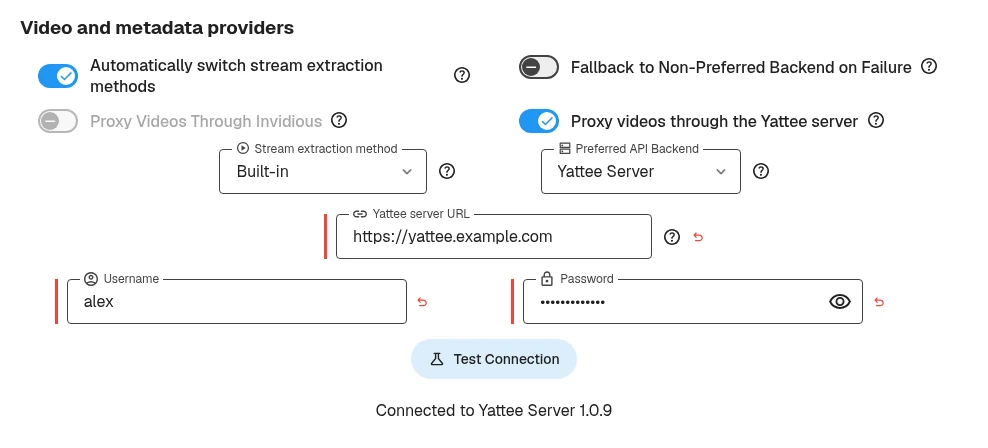
The server address shown is an example.
The username and password stay on the device. OpenTubeX does not export or sync them.
If the connection test fails, it names the problem, such as a wrong password or a missing CORS_ORIGINS entry. Correct it and test again.
Proxy videos through the server
Proxy videos through the Yattee server is on by default. The server then relays the video and audio streams, and the player does not connect to YouTube.
Turn it off only if the server uses the same internet connection as your device. YouTube serves a stream only to the IP address that requested it, so playback fails when the server is elsewhere.
Limitations
Yattee servers do not provide community posts, hashtag pages, or live chat, and comments cannot be sorted. With Fallback to Non-Preferred Backend on Failure turned on, OpenTubeX loads posts, hashtag pages, and live chat with the local API, which connects to YouTube directly. With fallback turned off, these pages show a message instead.
yattee-server 1.0.9 does not relay live streams. With that version, live streams only play with proxying turned off, and only if the server uses the same internet connection as your device.